Improving the Prompt
In this stage, we'll improve the chatbot experience by using colors with the rich library. This will allow us to distinguish the chatbot's response from our prompt.
Style Class
To add colors, we'll take advantage of the Style class from the rich library. This class allows you to use one of the 256 Standard Colors that are accepted in terminals, Hex values, or RGB values. It's pretty nice.
Import
To add it, update the import section of your code to include the Style class:
Color
Let's demonstrate how this works by updating our respond method to add some color.
Change the rprint line to include the style attribute:
class MyAgent(Agent):
    def chatbot(agent, user_input):
        # ...
        rprint(Panel.fit(
            formatted_response,
            width=80,
            style=Style(color="light_sea_green"),
        ))
        # ...

Prompt Class
We can also take advantage of the Prompt class in the rich library to make our prompt more readable by separating the color of the prompt from the text the user enters.
Import
First, import the Prompt class:
Prompt
Then, change the input line in the chat function to use the Prompt.ask() method:
In the updated code, we replaced the standard input function with Prompt.ask() and passed it a color to create a more readable prompt. Of course, you can choose whatever color you want to make it stand out even more.
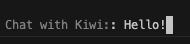
There are a few interesting options with the Prompt class that are worth exploring, including default values, a list of choices, and more. Check out the documentation for more goodness.
Try it
Engage in a conversation with Kiwi and enjoy the interactive and intuitive nature of the prompt. Respond to the prompt using natural language, and observe the chatbot's responses displayed in the familiar chat-like format.
Code Review
Next Steps
In the next section: Multiple Personas, we'll dive into an explosion of personality by using Rulesets to create multiple personas to chat with.